

Open the editor
- Open Attribution and choose a model from Attribution Models.
- Select the edit icon in the toolbar.
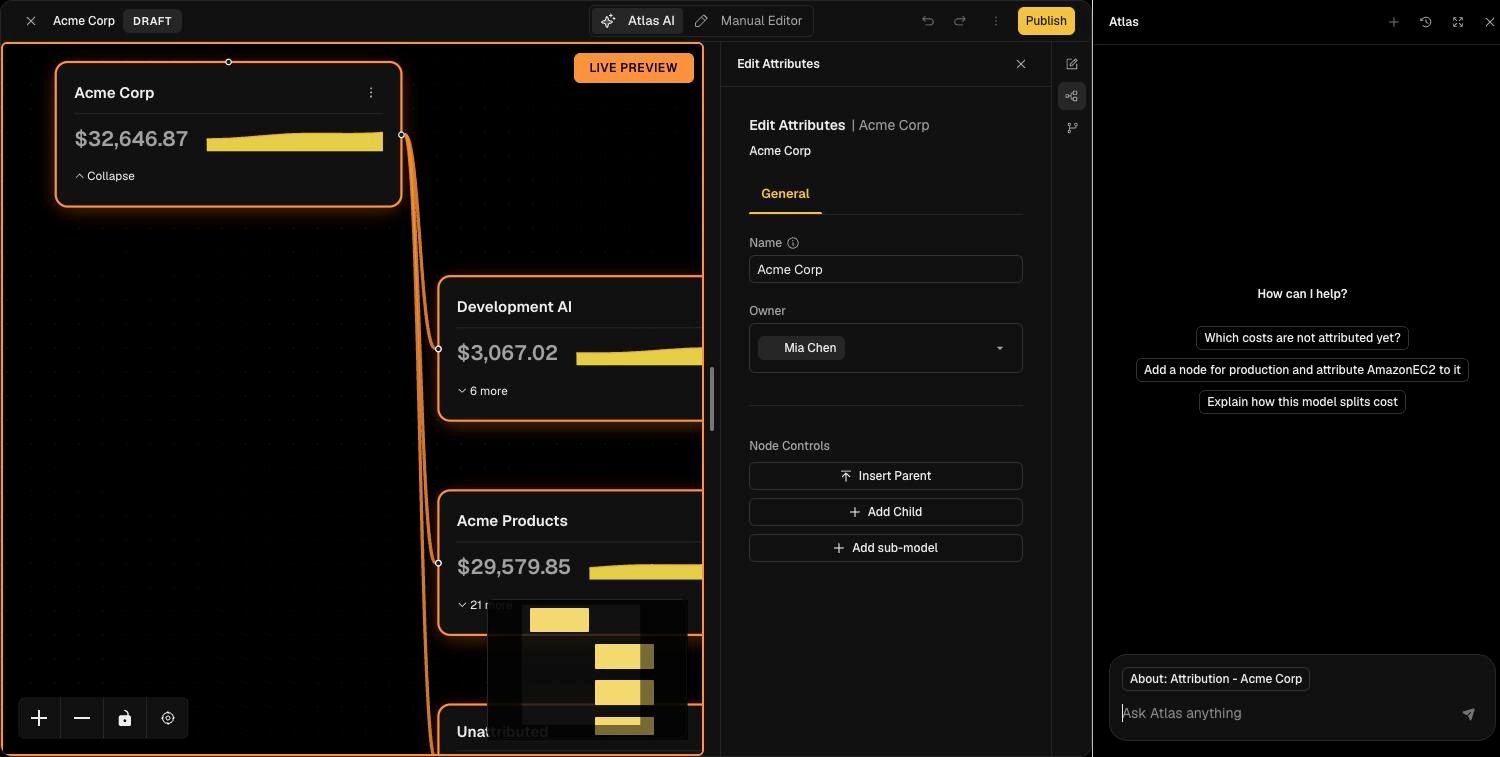
Edit with Atlas
With Atlas AI selected, describe the change in plain language, for example “Add a node for production and attribute AmazonEC2 to it”, or pick one of the suggested prompts. Atlas shows each step it takes, applies the changes to the draft, and the live preview refreshes as it works. Atlas only changes the draft. Review what it did on the canvas, use undo to reverse anything you do not want, and publish when you are satisfied. See Atlas for what else it can do.Edit by hand
Select Manual Editor, then select a node to open Edit Attributes.
Use Toggle Edit View in the side rail to switch the editing view, and Showbacks to manage how shared cost is distributed (see Showbacks).
Add a sub-model
A sub-model lets a team own and edit part of the Financial Operating Model separately, while its spend still rolls up to the parent.- In the editor, select the node the sub-model should hang from.
- Select Add sub-model in Edit Attributes.
- Name the sub-model and publish the draft.
Publish
- Select Publish.
- Review the summary of changes in the confirmation.
- Confirm to make the draft live.
Delete an ad-hoc model
Open the ad-hoc model in the editor, open the more actions menu and choose delete. The Financial Operating Model cannot be deleted.Troubleshooting
- The edit icon has an orange dot. Someone has an unpublished draft open on this model. Hover the icon to see who changed it last before you continue.
- Atlas made a change I did not want. Use undo, or discard the draft and start again.
- I cannot delete a node. A node linked to other objects may be blocked from deletion, the error names what is linked to it.