

If you buy Azure through a CSP partner rather than being one, use Customer Agreement (MCA), the CSP option is for partners only.
For direct customers, only Microsoft Customer Agreement billing accounts are supported.
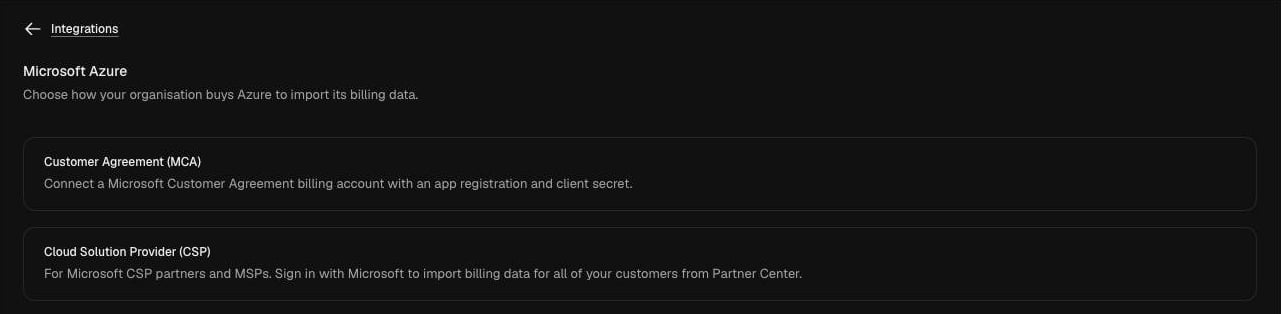
Connect a Customer Agreement (MCA) billing account
Before you start
- Permission to register an app in Microsoft Entra ID.
- The billing account owner role on your Microsoft Customer Agreement billing account, which you need to assign roles on it.
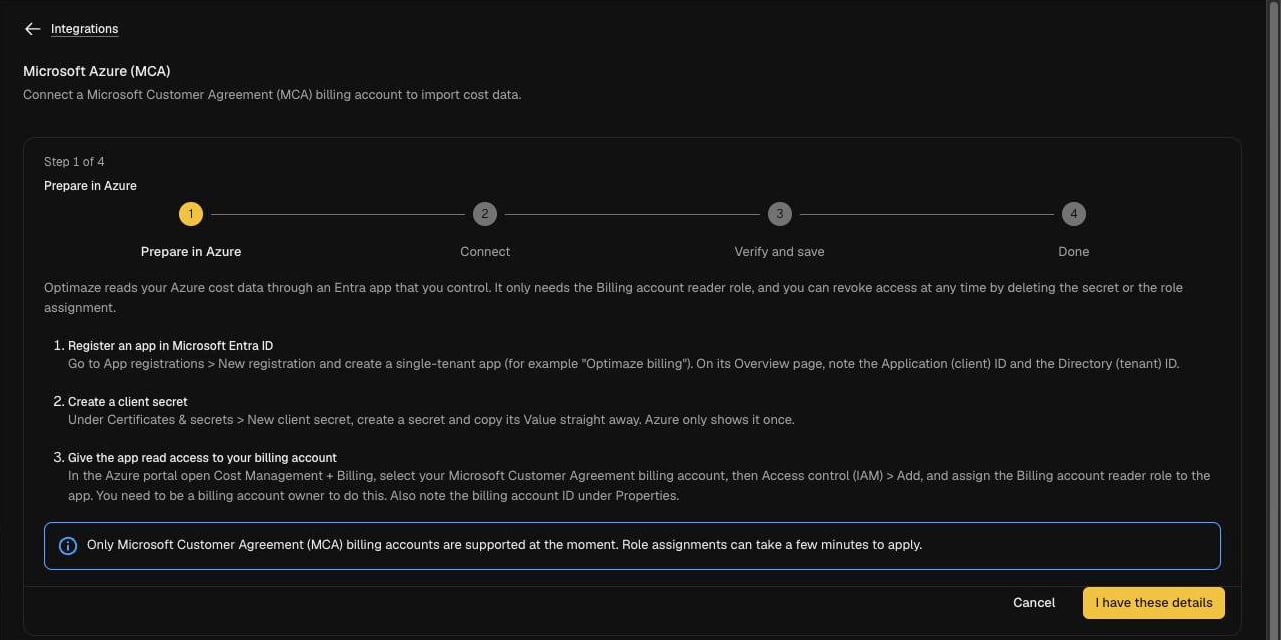
1
Register an app in Microsoft Entra ID
In Entra ID, go to App registrations > New registration and create a single-tenant app, for example Optimaze billing. On the app’s Overview page, copy the Application (client) ID and the Directory (tenant) ID.
2
Create a client secret
In the app, go to Certificates & secrets > New client secret. Copy the secret’s Value straight away, Azure only shows it once.
3
Give the app read access to your billing account
In the Azure portal, open Cost Management + Billing and select your Microsoft Customer Agreement billing account. Go to Access control (IAM) > Add and assign the Billing account reader role to the app. Then open Properties and copy the billing account ID.Role assignments can take a few minutes to apply.
4
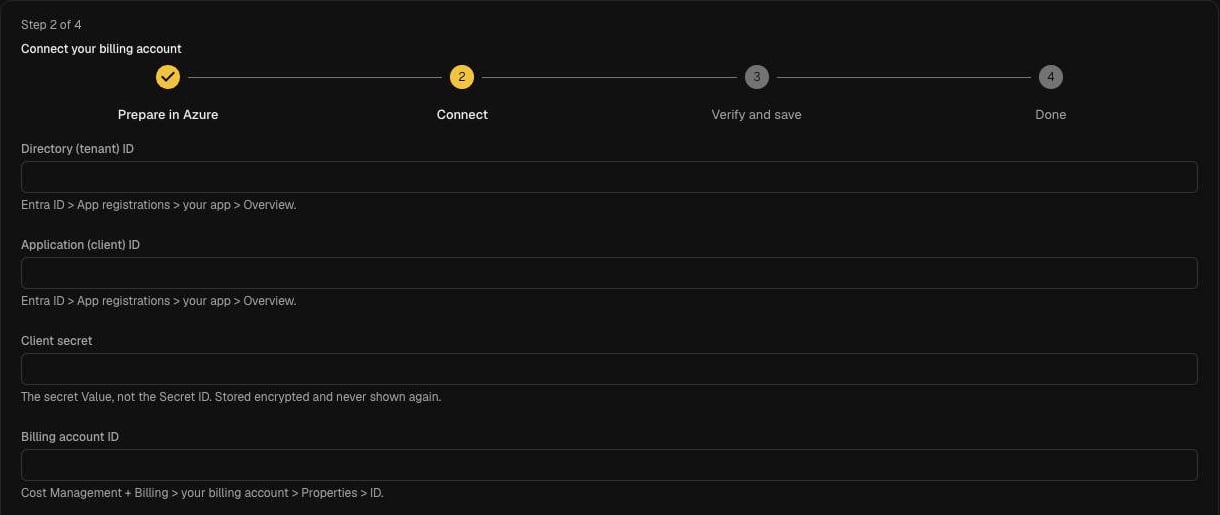
Enter the details in OPTIMAZE
In the OPTIMAZE setup, select I have these details, then enter:
The client secret is stored encrypted and never shown again.
5
Verify and connect
Select Verify and connect. OPTIMAZE checks it can sign in as the app and read your billing account, then saves the integration.
Connect a CSP partner account
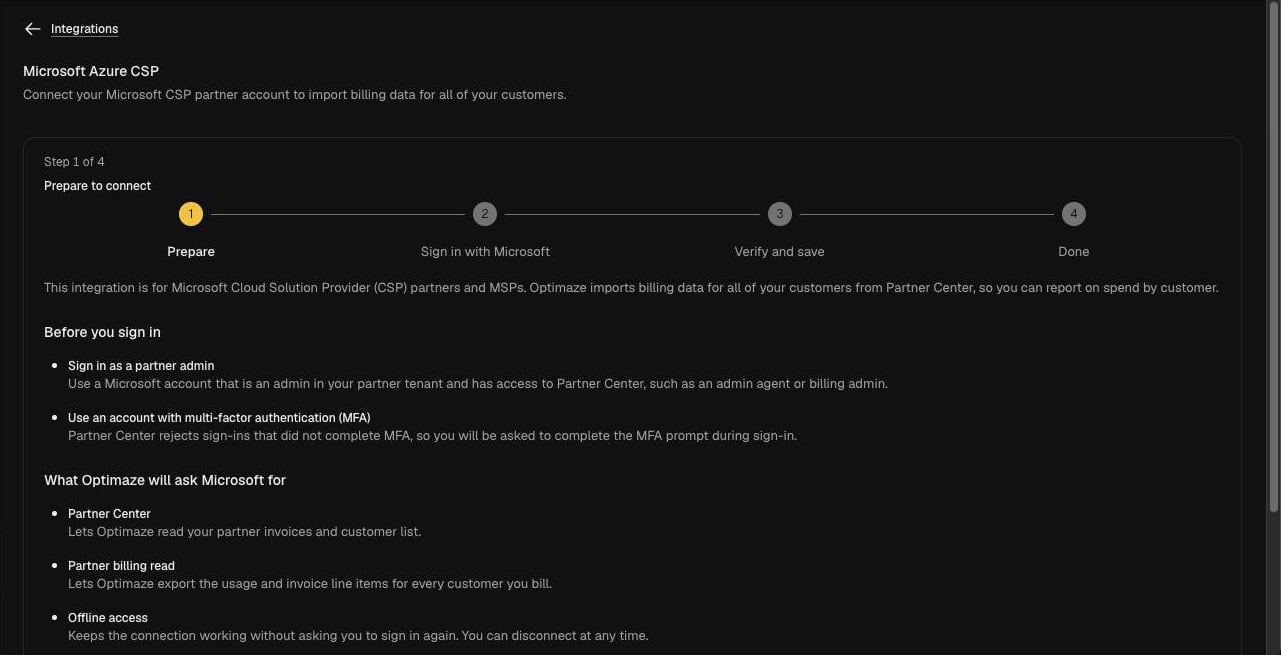
Use this if you are a Microsoft CSP partner or MSP. OPTIMAZE imports billing data for all of your customers from Partner Center, so you can report on spend by customer.Before you start
- A Microsoft account that is an admin in your partner tenant with access to Partner Center, such as an admin agent or billing admin.
- Multi-factor authentication on that account. Partner Center rejects sign-ins that did not complete MFA, so you will be asked to complete it during sign-in.
What OPTIMAZE asks Microsoft for
1
Prepare
Choose Cloud Solution Provider (CSP) and check the requirements on the first screen.
2
Sign in with Microsoft
Select Sign in with Microsoft, sign in as your partner admin, complete the MFA prompt and approve the permissions above.
3
Verify and save
OPTIMAZE confirms the connection and saves the integration.
What happens next
Cost data appears after the first successful sync. OPTIMAZE converts Azure billing data to the FOCUS standard, the same shape as your other cloud providers, so Azure spend can be attributed, budgeted and compared alongside AWS and Google Cloud. Check the connection from Manage on the Microsoft Azure tile.Revoke access
- MCA: delete the client secret or remove the Billing account reader role assignment in Azure, or remove the integration in OPTIMAZE.
- CSP: disconnect the integration in OPTIMAZE.
Troubleshooting
- Verification fails straight after you assign the role. Role assignments can take a few minutes to apply. Wait, then try again.
- The client secret is rejected. Check you copied the secret Value, not the Secret ID. If you no longer have the value, create a new secret.
- My billing account is not a Microsoft Customer Agreement. Only MCA billing accounts are supported for direct customers.
- CSP sign-in fails. Check the account is an admin in your partner tenant with Partner Center access, and that it completed MFA.