

Before you start
- A Financial Operating Model with at least the nodes you want to budget against.
- To send alerts to Slack, a connected Slack integration (Data > Integrations > Slack).
The Budgets page
Under Planning, select Budgets. Each budget set is shown as a tree that follows your model, the set at the top and a row for each node beneath it, with its Reporting entity, Details, Usage against the envelope and Status. Select a row to open and edit it. Use Collapse all to fold the tree, the search box to find a set, and Export to download the list.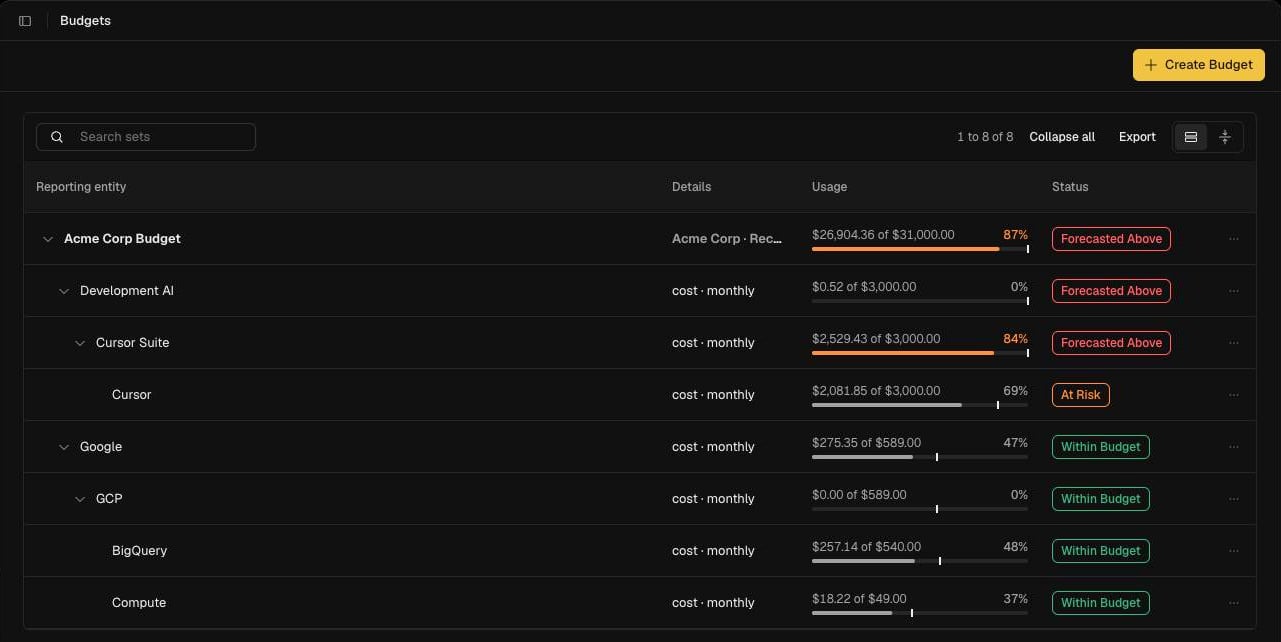
Create a budget set
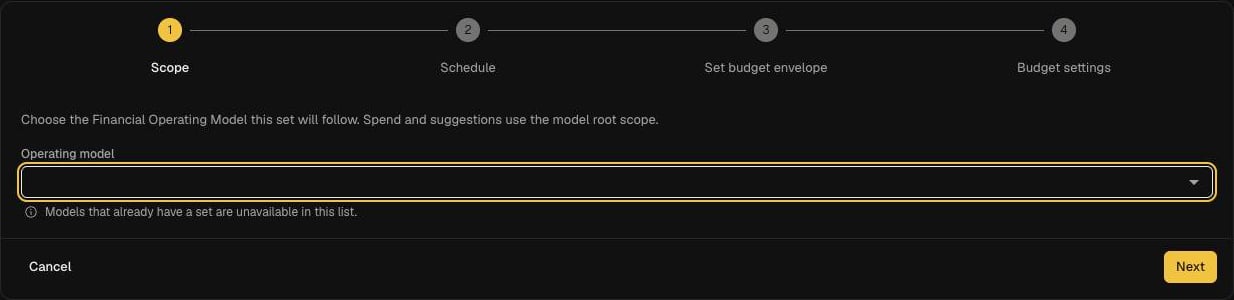
Select Create Budget. The wizard has four steps.1
Scope
Choose the Operating model the set follows. Each model can have one budget set, so models that already have one are not listed. The Budget Preview shows spend for the model root over the selected Time Period, a daily trend, and a suggested limit based on recent spend.
2
Schedule
Choose how the budget period works:
- Recurring: monthly, quarterly or yearly periods. Pick the Time period.
- Fixed window: a labelled date range, with an optional breakdown, for a one-off programme or project.
3
Set budget envelope
Enter the envelope for the root, in USD. Select Apply suggested limit to use the figure OPTIMAZE suggests from recent spend.
4
Budget settings
- Set name and Owner.
- Notification recipients: add members, email addresses (Add email) or a Slack channel (Add Slack channel). At least one is required.
- Notification frequency: On Breach sends an alert when a threshold is crossed. You can instead send a summary Hourly, Daily, Weekly, Monthly, Quarterly or Yearly.
- Notification thresholds (%): three thresholds default to 80%, 90% and 100% of the envelope. The preview shows the dollar value of each against current spend.
Budgets on nodes and sub-models
Child budgets inherit their setup from the set, and you can set budgets on sub-models as well as on the parent model. If a sub-model’s envelope is larger than its parent’s, OPTIMAZE shows a warning but still saves it, so you can plan an overrun deliberately.When the model changes
Budgets follow nodes on the published model. If a model change removes a node that has a budget, the publish confirmation lists it and publishing archives the budget. See Edit and publish a model.Troubleshooting
- Add Slack channel is greyed out. Connect Slack first, under Data > Integrations.
- The operating model list is empty. Budget sets need a Financial Operating Model. See Attribution.