

Prerequisites
- Access to the AWS account that owns your billing / CUR export
- A Cost and Usage Report delivered to an S3 bucket (bucket name and path)
- Permission to deploy CloudFormation stacks in the organisation or management account (and member accounts if required)
Set up the AWS integration
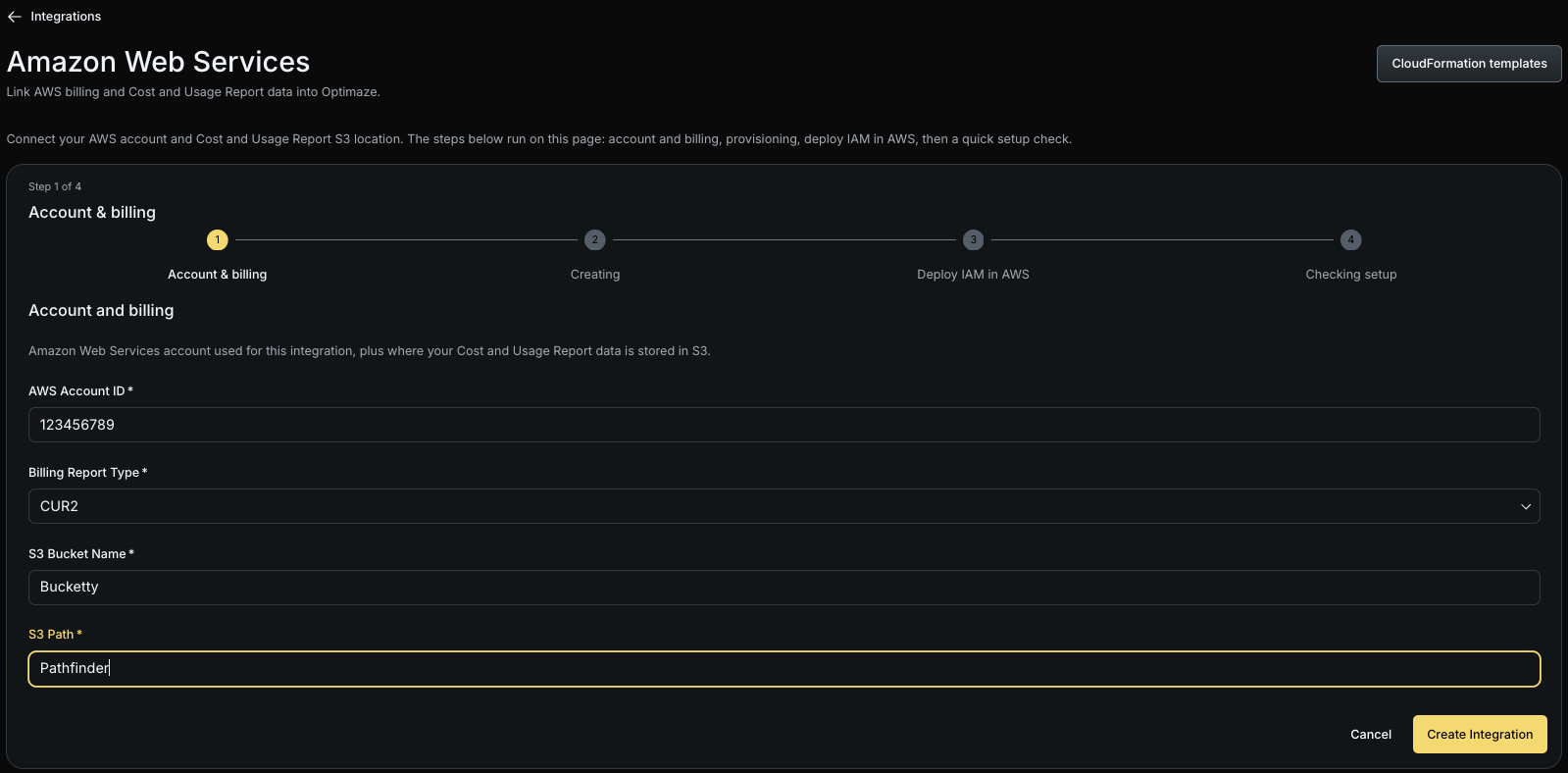
In Optimaze, open Integrations, then choose AWS (or Create and select Amazon Web Services).Step 1: Enter account and billing details
Provide:- AWS Account ID
- Billing Report Type (CUR, CUR2, or Focus)
- S3 Bucket Name
- S3 path (prefix where CUR objects are delivered)
Step 2: Create the integration
Submit the form. Optimaze saves your configuration and provisions the integration.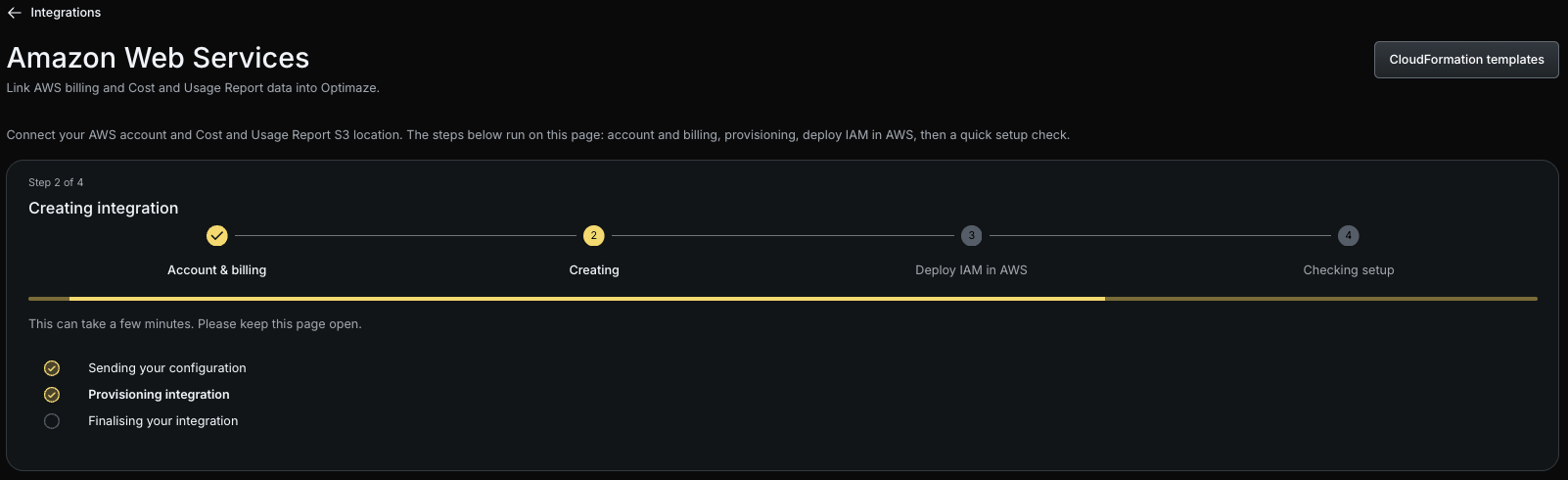
Step 3: Deploy IAM in AWS
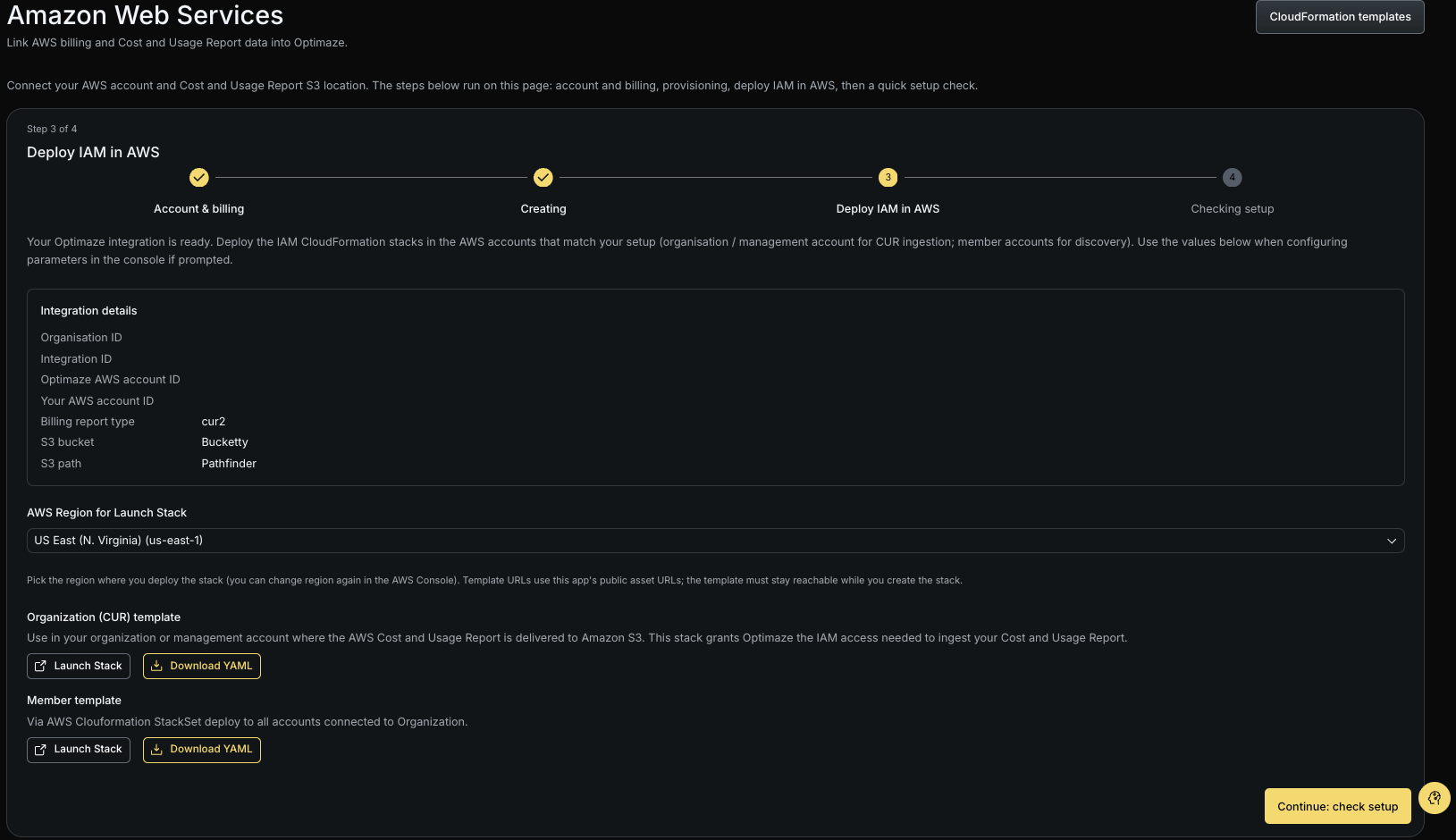
When prompted, deploy the CloudFormation stacks Optimaze provides:
Choose the AWS Region for stack launch, then use Launch Stack or download the YAML template. Confirm integration details (organisation ID, integration ID, Optimaze AWS account ID, bucket, and path) match what you entered.
Step 4: Checking setup
Optimaze verifies it can access your S3 bucket and read CUR data using the deployed IAM role. Fix any errors (wrong bucket path, stack failure, or missing permissions) and retry until validation succeeds.What happens next
Once validation succeeds, Optimaze syncs billing data from your CUR export into the platform for attribution, budgets, and FinOps reporting. Monitor health and last sync on the Integrations list.Data flow (summary)
Customer Cost and Usage Report in S3 → IAM role you deploy via CloudFormation → Optimaze reads CUR objects from your bucket → Optimaze internal storage and analytics. Optimaze does not require access to your application workloads.Troubleshooting
- Wrong bucket or path: Confirm S3 bucket name and prefix match the CUR delivery location in AWS.
- CloudFormation failed: Re-check stack events in the AWS console; ensure the Optimaze AWS account ID parameter is correct.
- Access denied: Verify the organisation and member stacks completed in every required account.
- Integration error state: Re-check account ID, billing report type, and bucket permissions, then retry from Integrations.