

Prerequisites
- A Google Cloud billing account with Detailed (resource-level) export to BigQuery enabled, not Standard-only
- BigQuery export project ID and dataset ID for that billing account
- Permission to grant IAM roles in the export project (
BigQuery Job Useron the project,BigQuery Data Vieweron the dataset)
Set up the Google Cloud integration
In Optimaze, open Integrations, then choose Google Cloud (or Create and select Google Cloud).Step 1: Enter BigQuery billing details
Provide:- Billing Account ID (for example
012345-6789AB-CDEF01) - BigQuery Project ID
- BigQuery Dataset ID
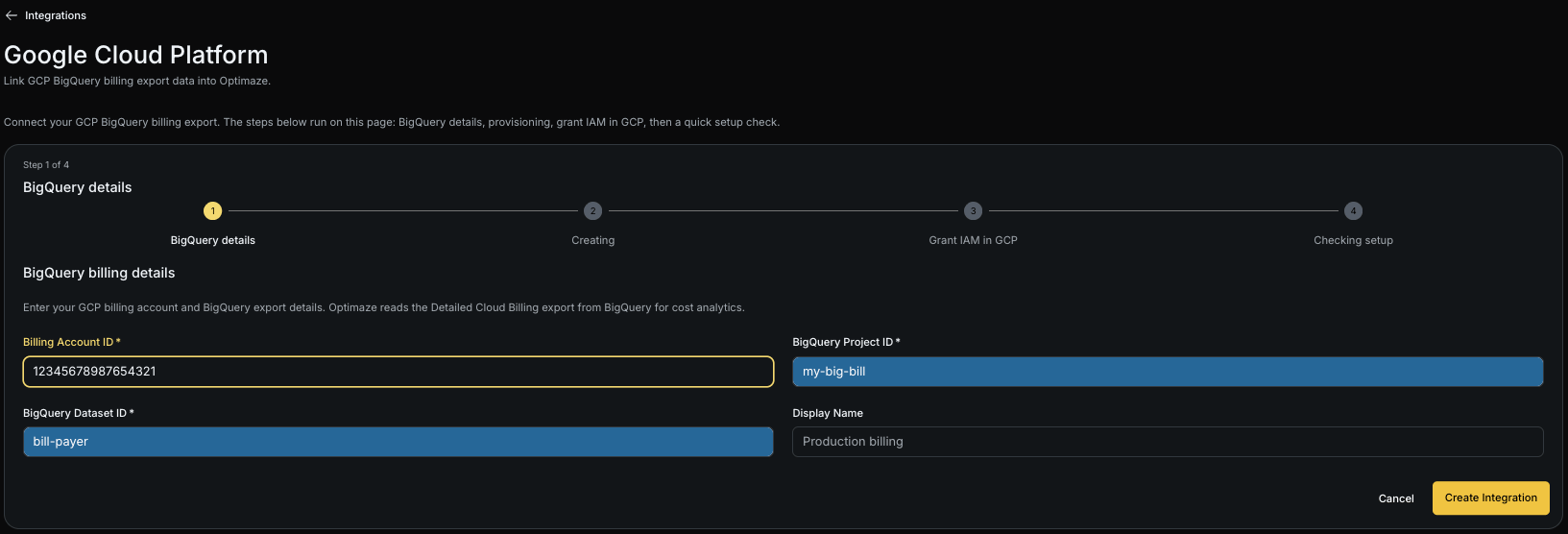
Step 2: Create the integration
Submit the form. Optimaze validates the configuration shape and provisions a dedicated reader service account for this integration.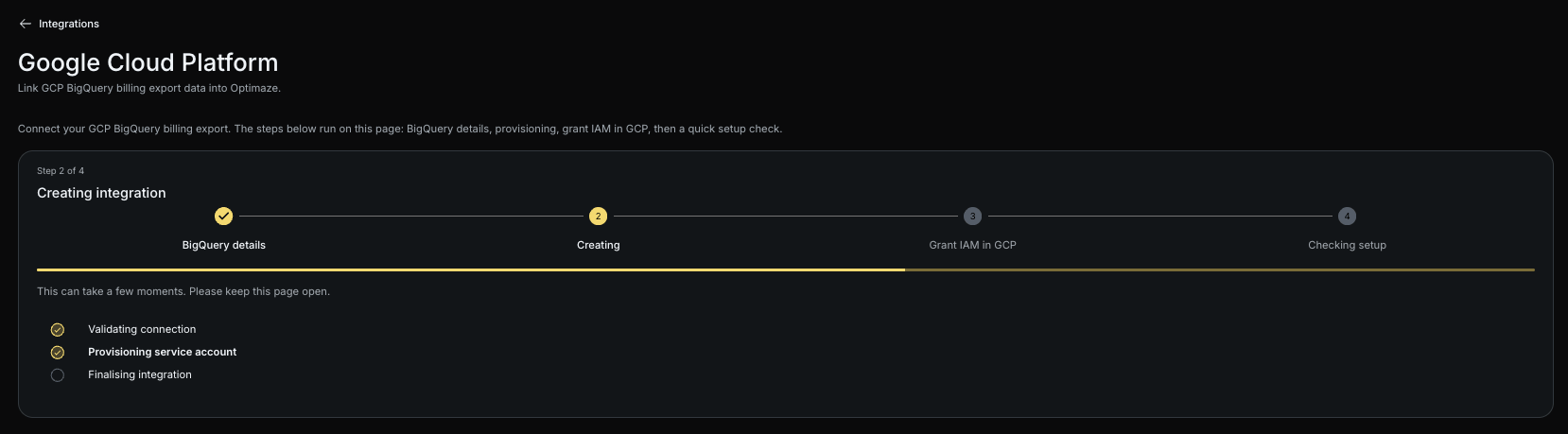
Step 3: Grant IAM in Google Cloud
When prompted, grant these roles to the service account email shown in Optimaze:
Use the link to open the Google Cloud IAM console for the project, add the service account as a principal, and assign the roles above.
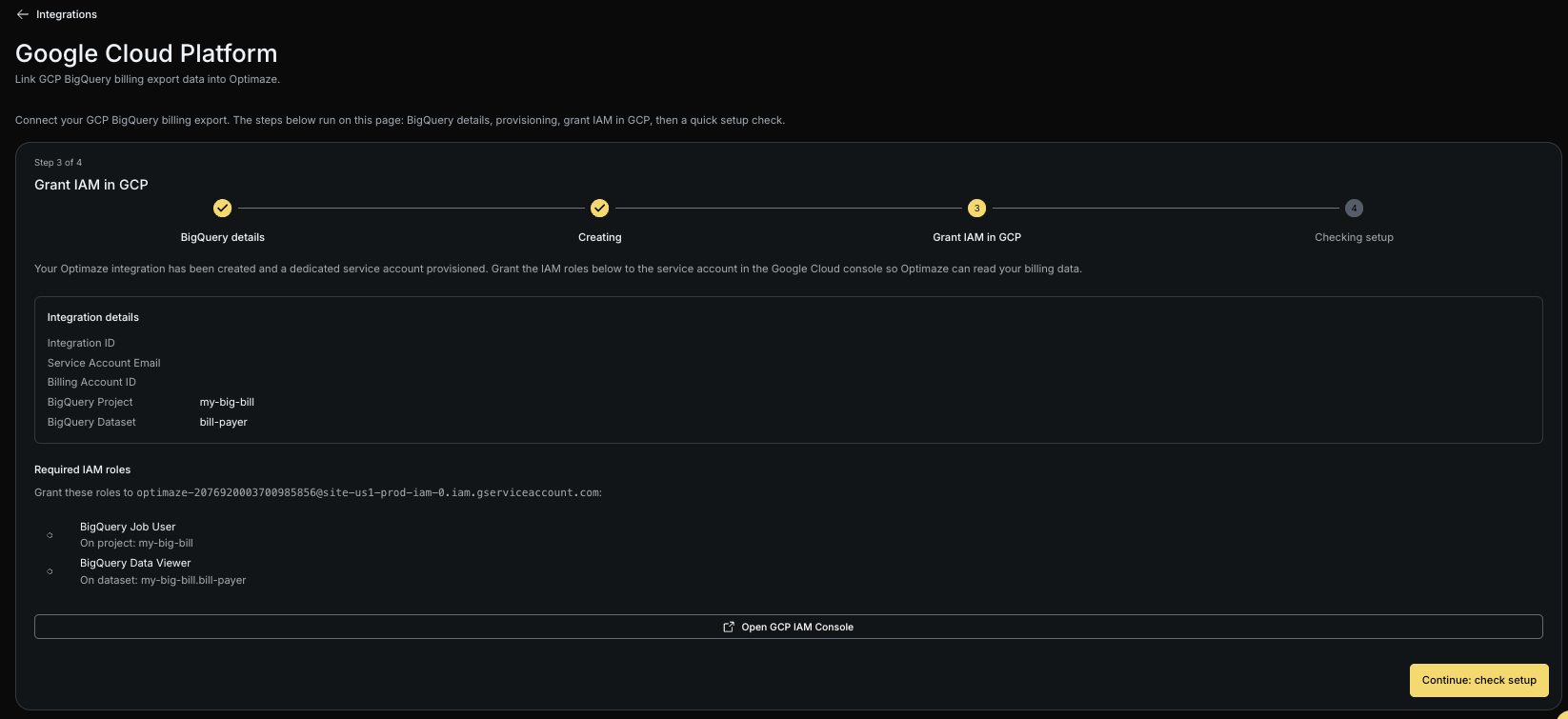
Step 4: Checking setup
Optimaze verifies that it can authenticate, run BigQuery jobs, and read Detailed export data. Fix any errors (wrong dataset, Standard-only export, or missing IAM) and retry until validation succeeds.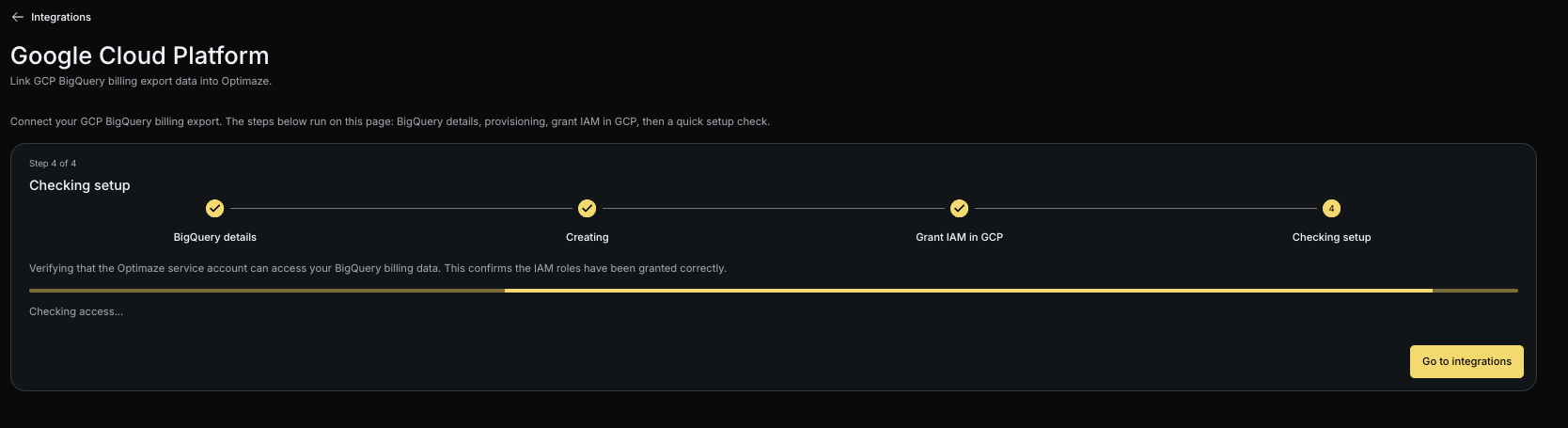
What happens next
Once validation succeeds, Optimaze syncs billing periods from your BigQuery export into the platform for attribution and FinOps reporting. Monitor health and last sync on the Integrations list.Data flow (summary)
Customer Detailed billing export in BigQuery → Optimaze reader service account (IAM you grant) → Optimaze internal storage and analytics. Optimaze does not require access to your application code or production workloads.Troubleshooting
- Standard-only export: Enable Detailed export for the billing account in the Google Cloud console.
- IAM denied: Confirm Job User on the project and Data Viewer on the dataset for the Optimaze service account email.
- Wrong dataset / billing account: Re-check billing account ID, project ID, and dataset ID match the export you configured.