

Prerequisites
- An OpenAI organisation with access to Organisation → Admin API keys
- Permission to create an Admin API key (keys typically start with
sk-admin-)
Set up the OpenAI integration
In Optimaze, open Integrations, then choose OpenAI (or Create and select OpenAI).Step 1: Create an Admin API key in OpenAI
In the OpenAI Platform, go to Organisation → Admin API keys and create an Admin API key. Copy it once; you will not be able to view the full secret again.Step 2: Enter the key in Optimaze
Paste the OpenAI Admin API key into the Optimaze form. Optionally set a display name (for exampleOpenAI production). Credentials are stored encrypted in Optimaze integration config.
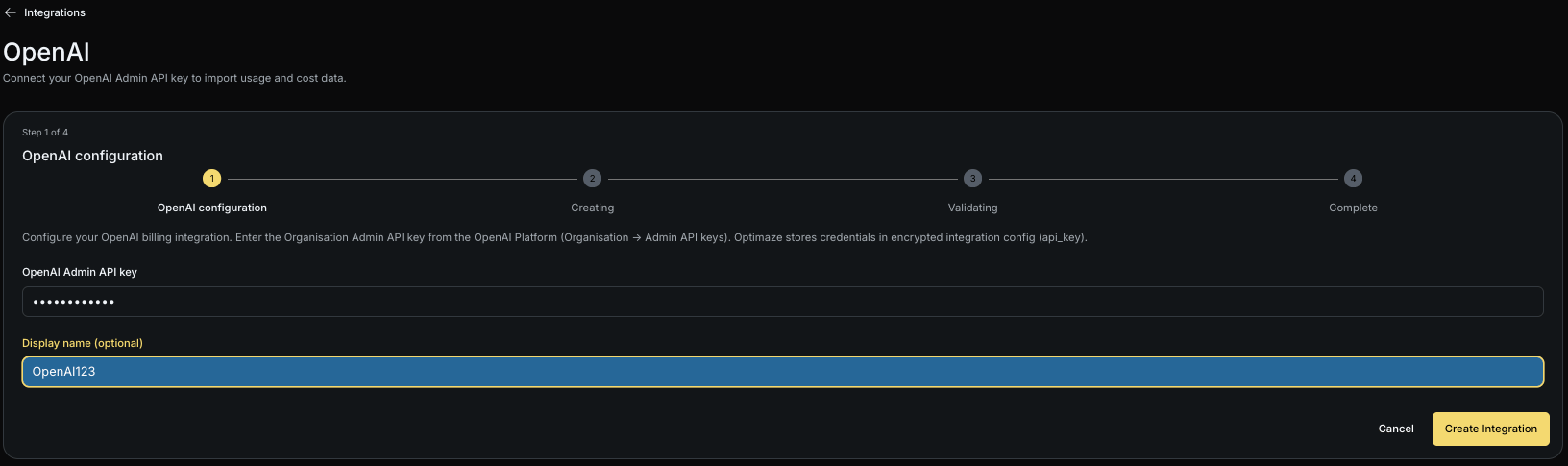
Step 3: Create the integration
Submit the form to create the integration. Optimaze validates the key and starts syncing organisation cost data.What happens next
Cost data appears in Optimaze after the first successful sync. Check status and last sync on the Integrations list. You can rotate the key later from the integration edit screen (leave the key blank to keep the existing credential).Troubleshooting
- Keys must be Admin keys (
sk-admin-...), not standard project API keys. - Confirm the key belongs to the organisation whose spend you want to ingest.
- If validation fails, regenerate the Admin key and update the integration.